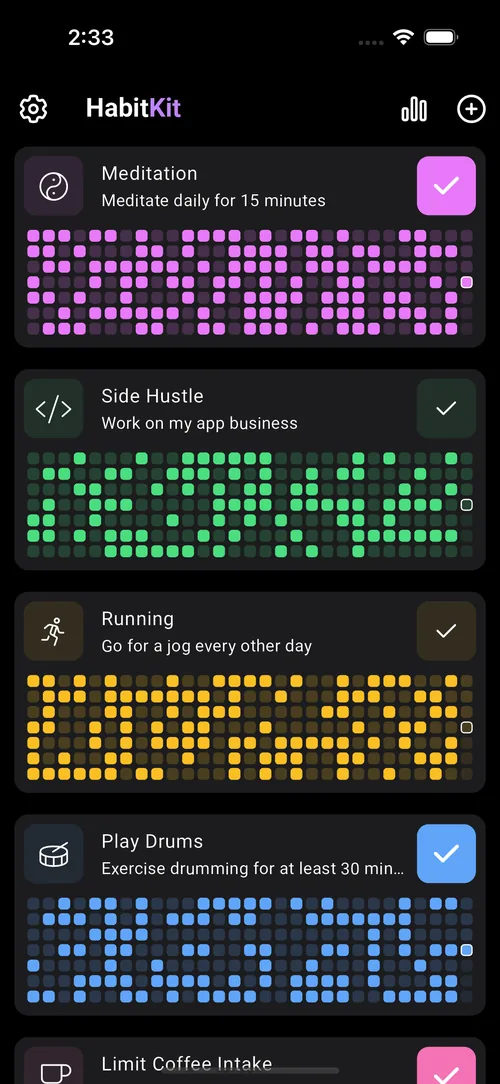
In habit tracking, visibility matters. The more often you see your goals, the more likely you are to follow through. HabitKit widgets bring your habits directly to your iOS home screen so progress stays in sight all day.
By adding HabitKit widgets, your iPhone or iPad becomes a constant companion for better routines. You can check progress at a glance, stay motivated by streaks, and complete habits faster without digging through screens.
Download HabitKit
How to Add HabitKit Widgets to Your iOS Home Screen
- Make sure HabitKit is updated and you have created the habits you want to track.
- Enter jiggle mode on your home screen.
- Long-press an empty area until apps begin to wiggle.
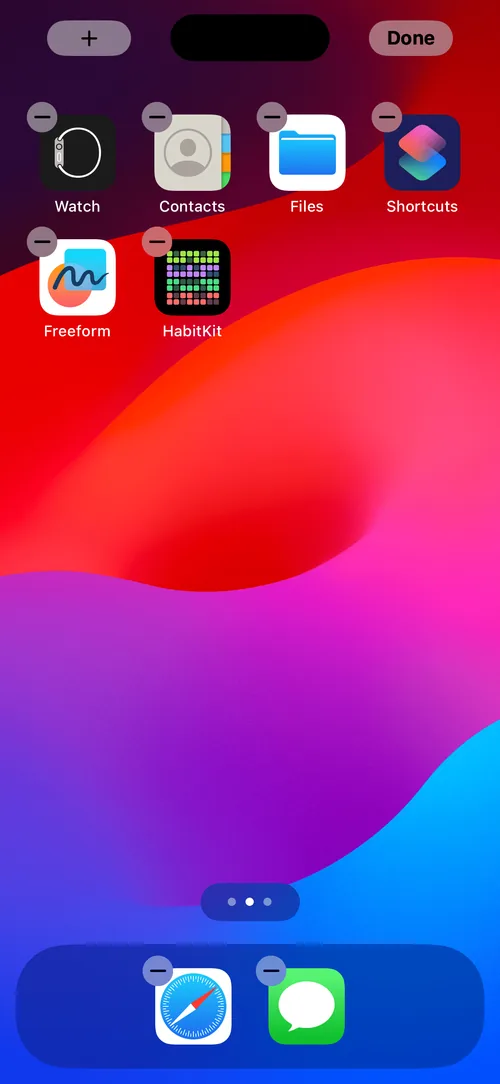
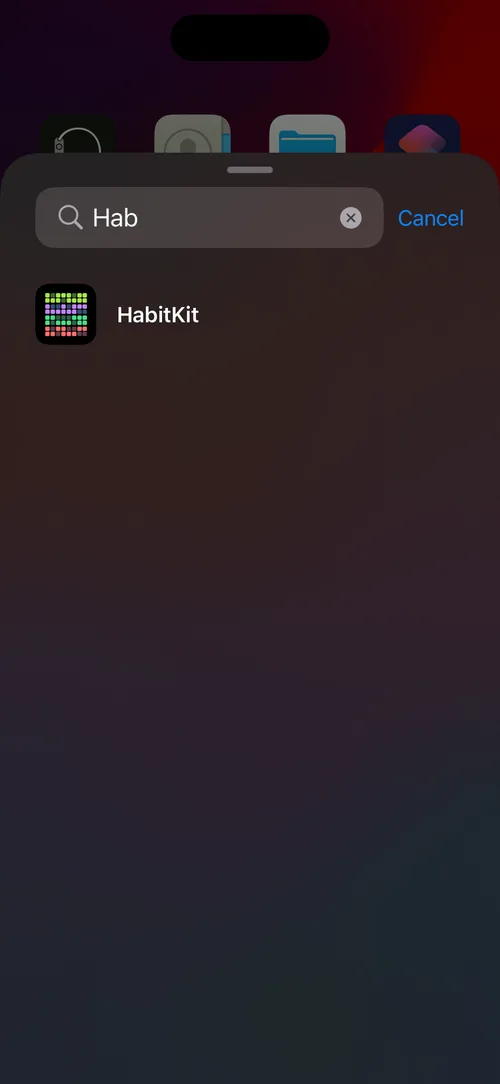
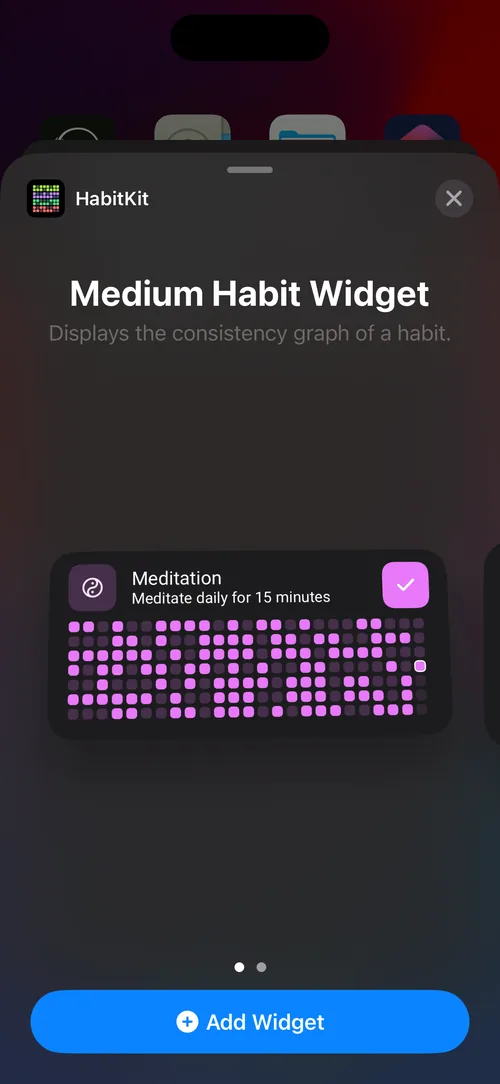
- Tap the + button in the top-left corner.
- Scroll or search for HabitKit in the widget list.
- Choose a widget size and tap Add Widget.
Optional Steps
- While still in jiggle mode, drag the widget to your preferred location.
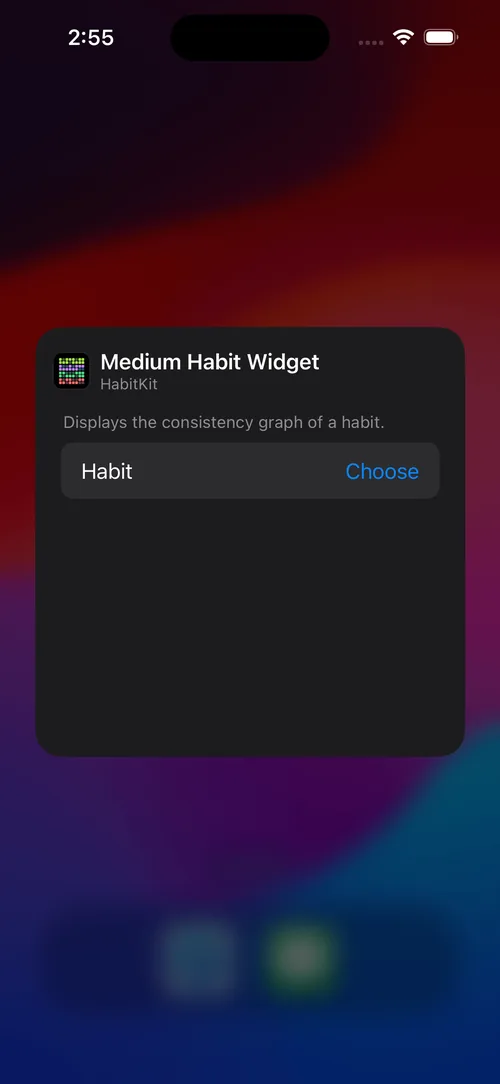
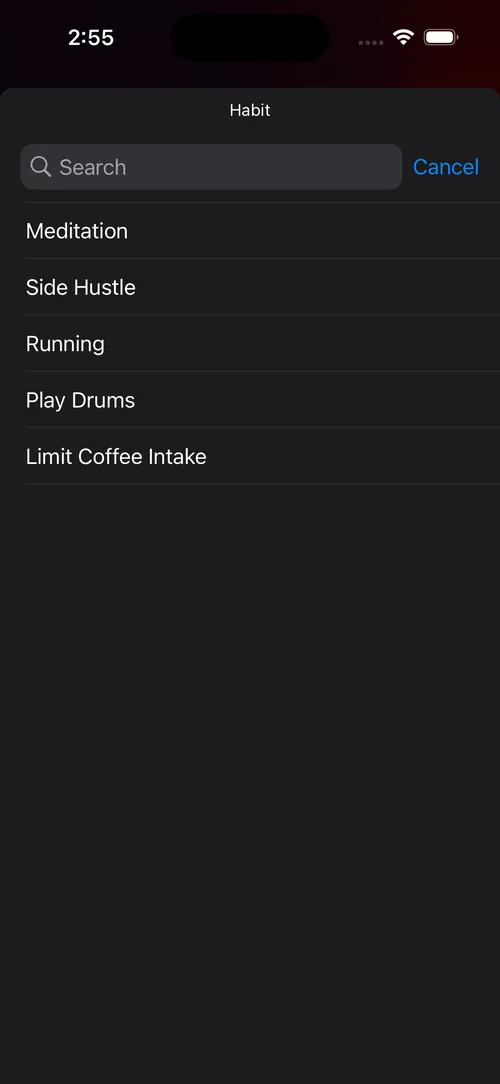
- Long-press the widget and tap Edit Widget to choose which habit to show.
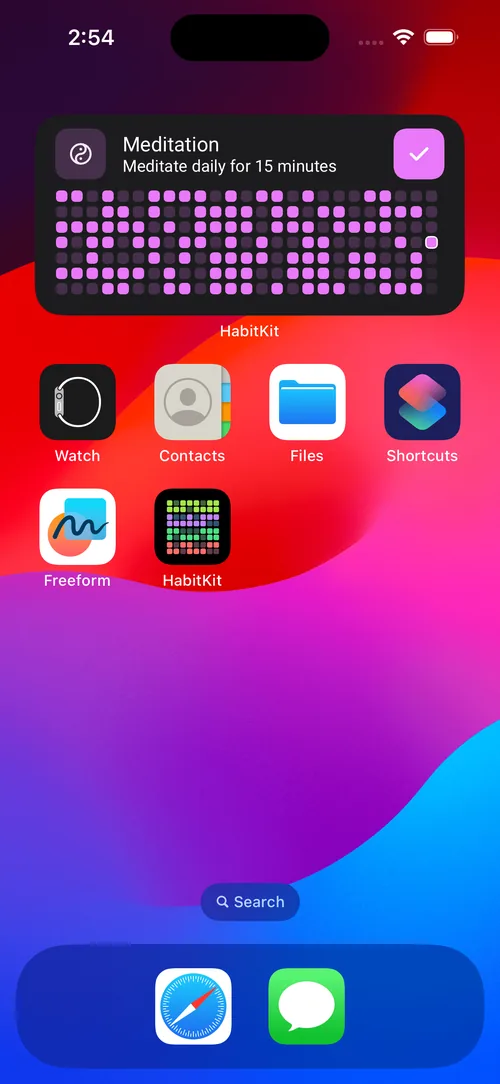
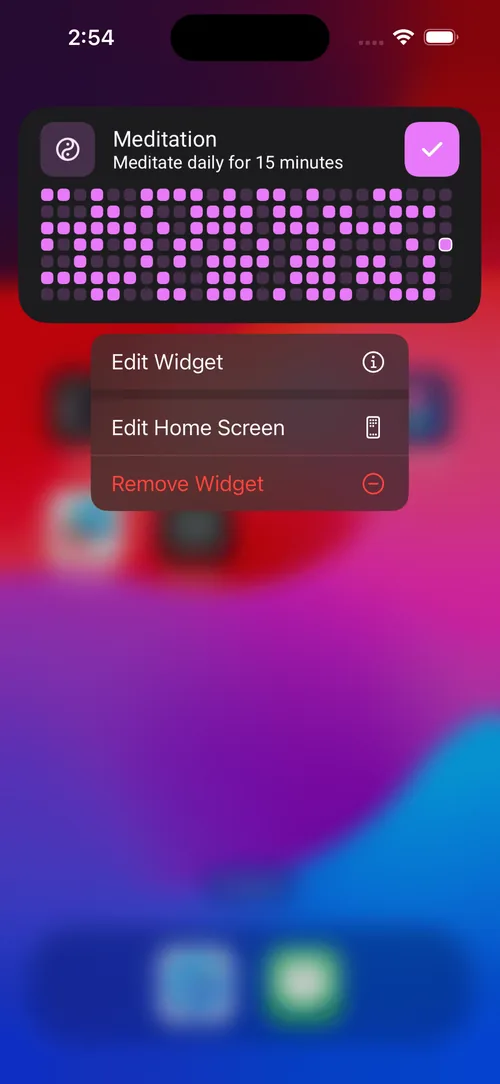
- Tap the check icon directly on the widget for quick completion toggles.
By following these steps, you can build a personal habit-tracking command center right on your home screen. Experiment with widget sizes and placement until the setup fits your routine and keeps your habits top of mind.