Discover the secrets of integrating iOS Shortcuts with your favorite habit-tracking app to simplify your daily routines.
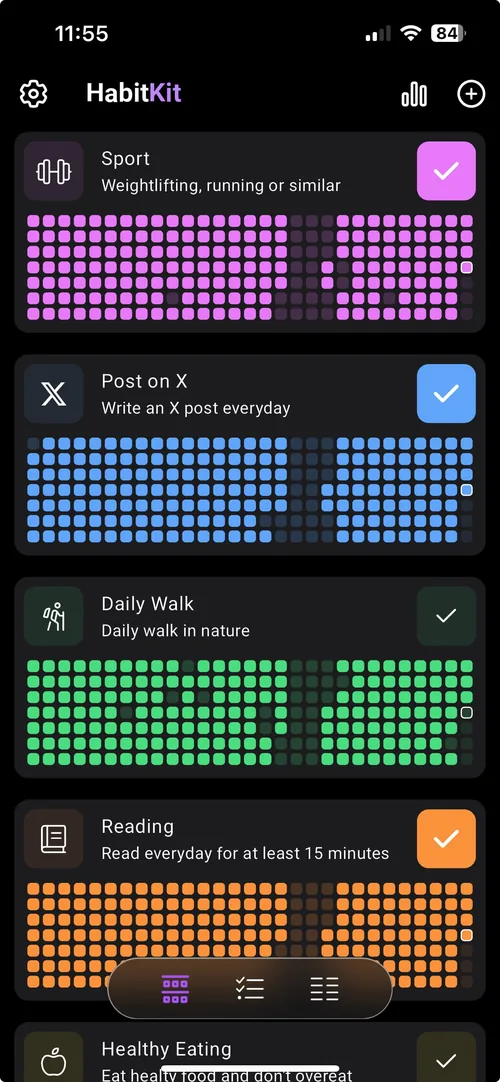
Imagine a workflow where habit tracking seamlessly integrates with your daily activities, automatically checking off goals as you move through the day. With HabitKit and iOS Shortcuts, that workflow is possible today.
By connecting HabitKit habits to iOS automations, you can build a reliable system that works behind the scenes to keep you consistent.
Download HabitKit
This setup saves time and mental energy while improving tracking accuracy. Instead of remembering to log habits manually, your phone can trigger completions based on workouts, locations, or time of day.
Setup Guide: Connecting HabitKit to iOS Shortcuts
- Install Shortcuts from the App Store.
- Make sure your habits are already created in HabitKit.
- Set up your automation trigger:
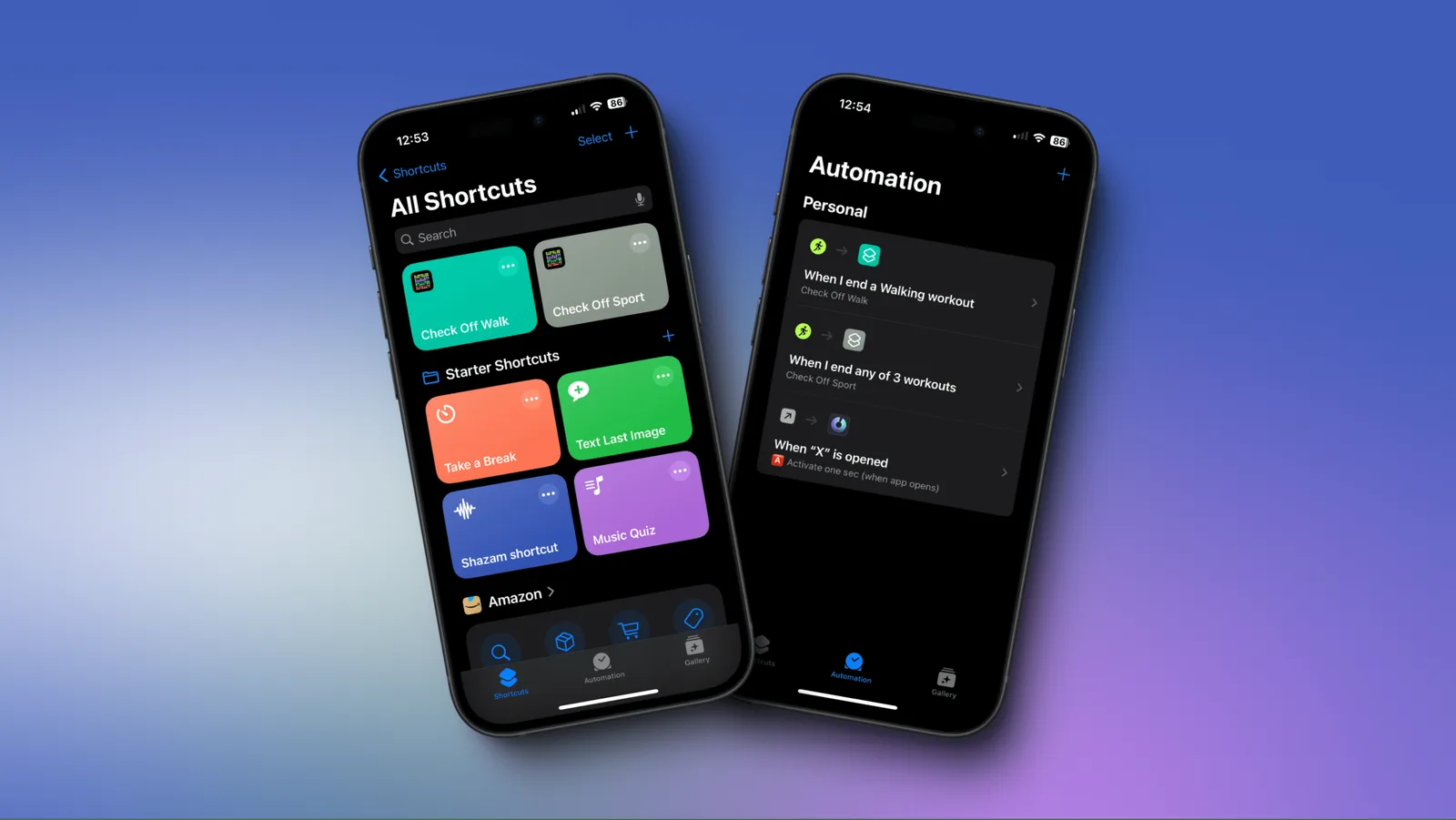
- Tap Automation at the bottom of the Shortcuts app.
- Tap the + button to create a new automation.
- Choose a trigger, for example When I start a workout.
- Configure trigger details, for example Workout Type: Running, trigger type Ends, and optionally Run Immediately.
- Tap Next and choose New Blank Automation.
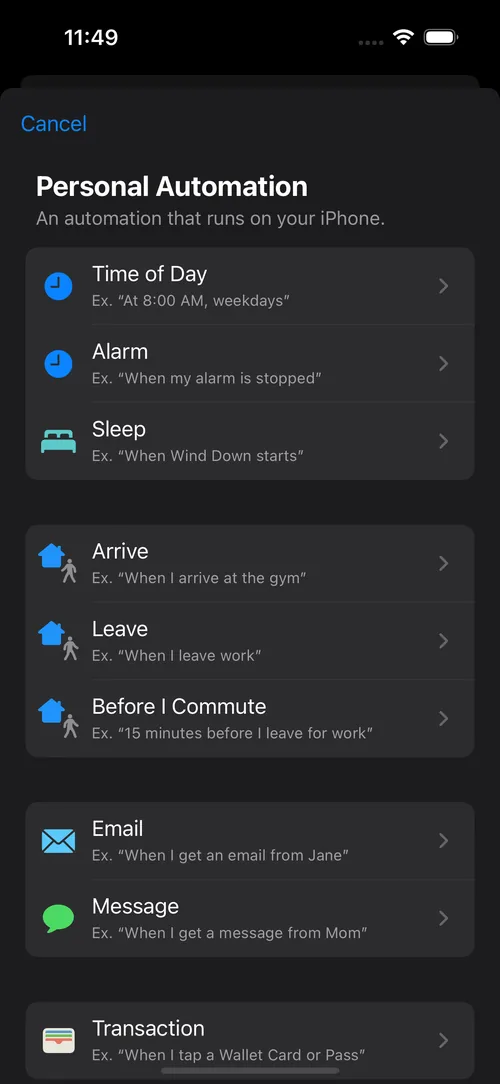
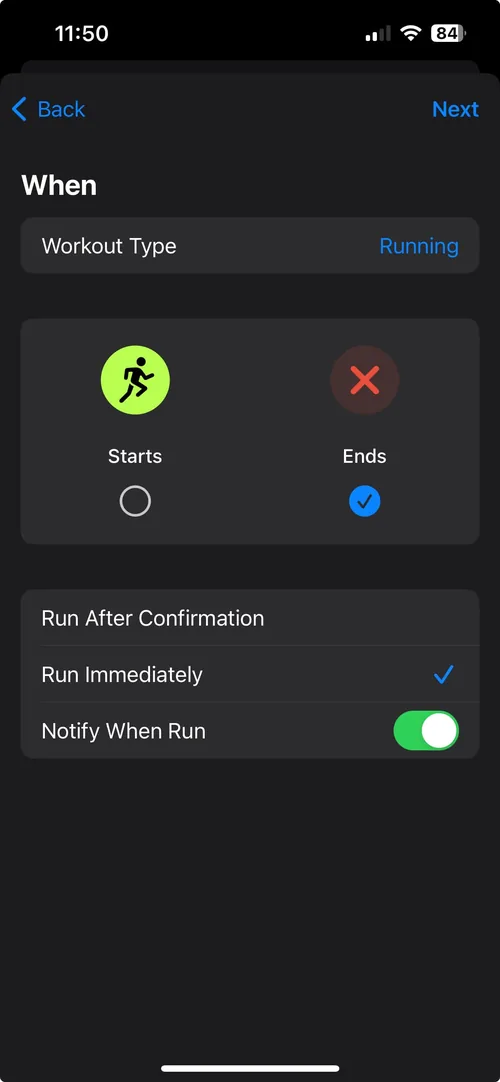
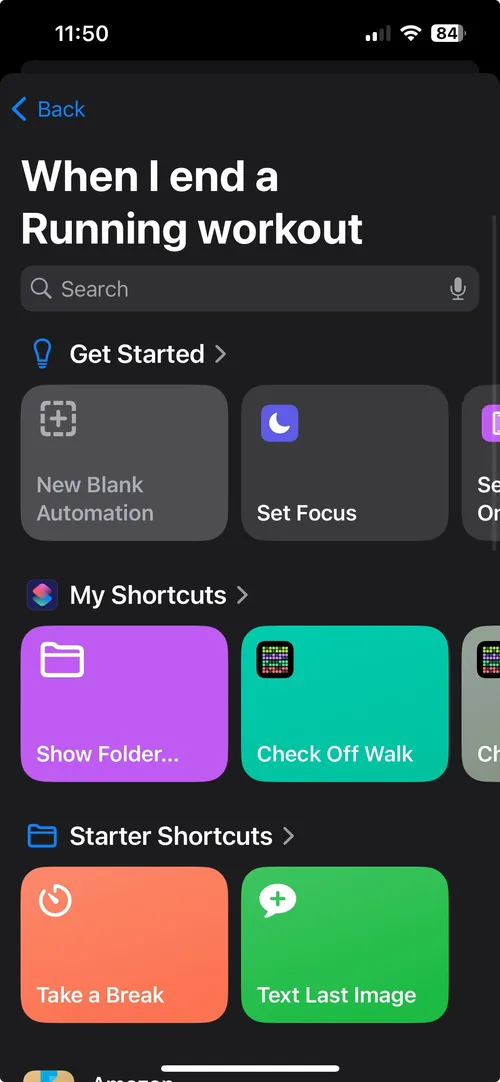
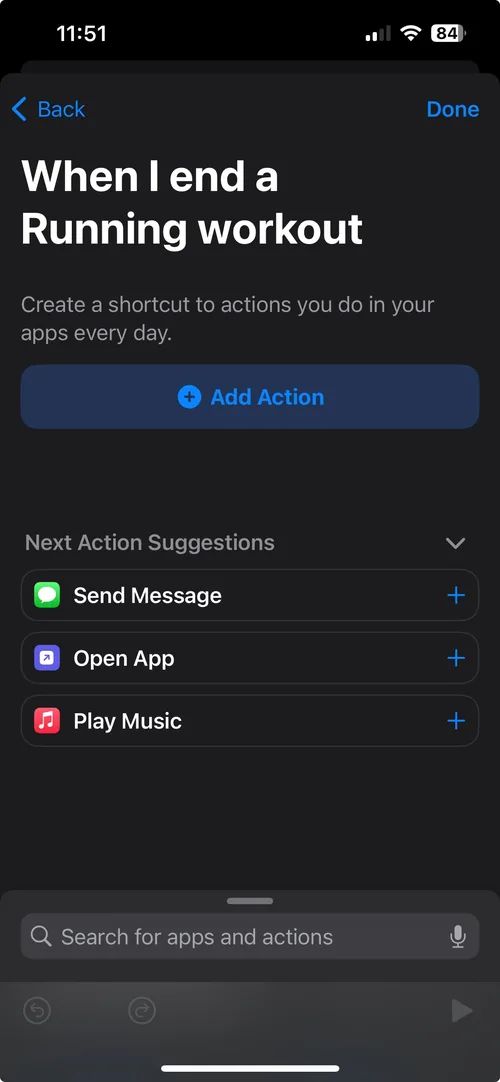
- Tap Add Action.
- Scroll to HabitKit and choose Complete Habit.
- Expand the blue caret menu and select the habit in the Habit field.
- Tap Done to finish your first HabitKit automation.
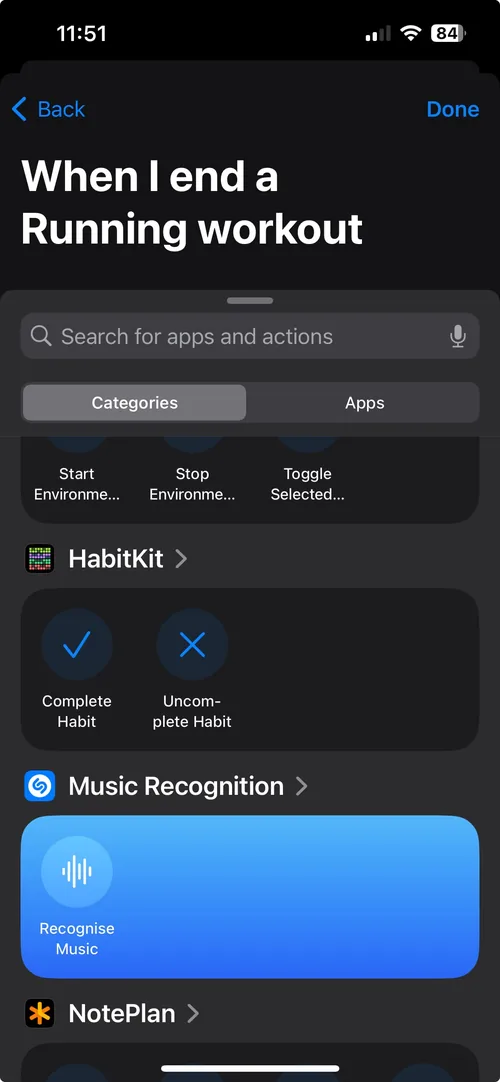
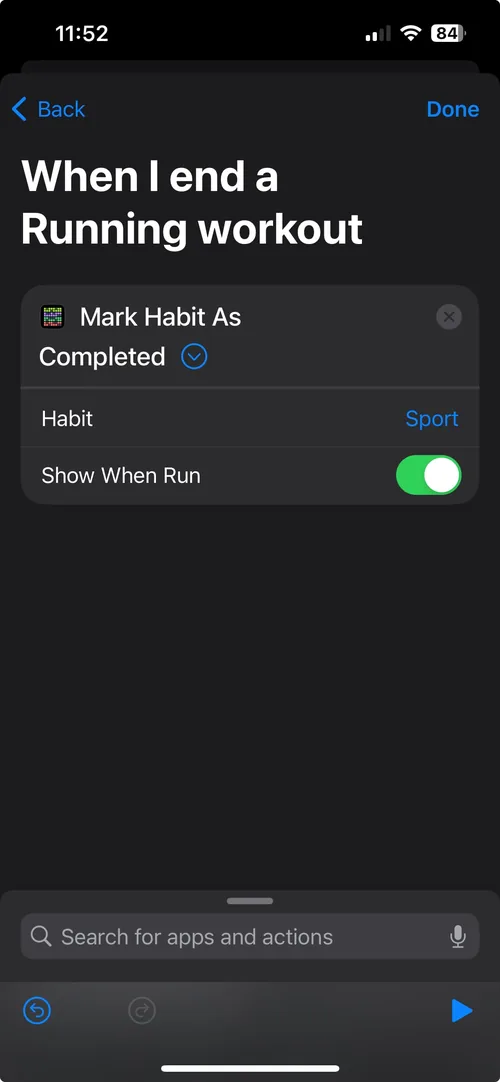
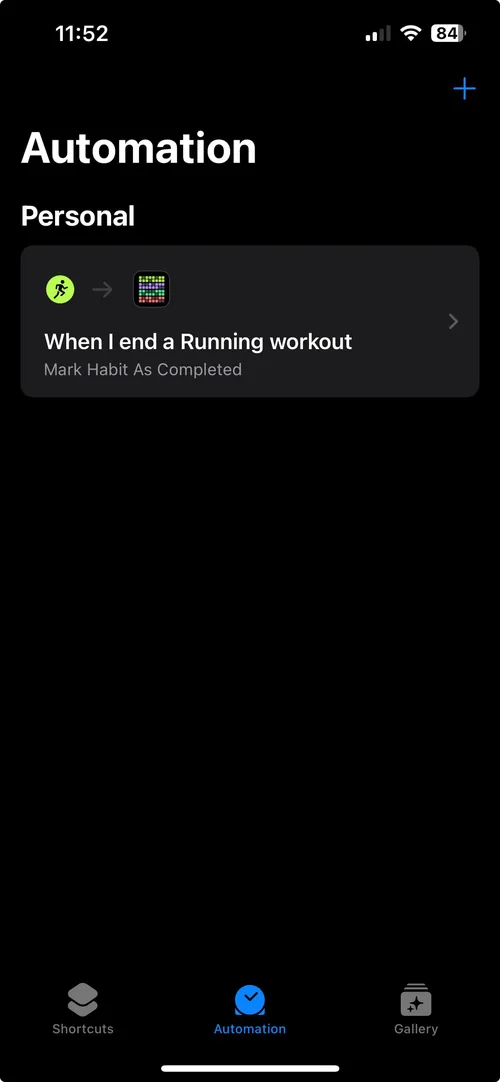
By following these steps, you can build powerful automations that connect real-life actions with your habit system. Experiment with different triggers to create a setup that fits your routine.